Branching AI Workspace

You are killing your best ideas, one scroll at a time.

Our thoughts are never linear. But AI chats are. This mismatch is why we constantly lose context, wasting precious time scrolling up just to find out what we’ve thought just a few minutes ago. That’s why we built a tree-structured AI that actually mirrors your mind. Stop scrolling up to rescue your past thoughts. Get your time back, and focus on what really matters.

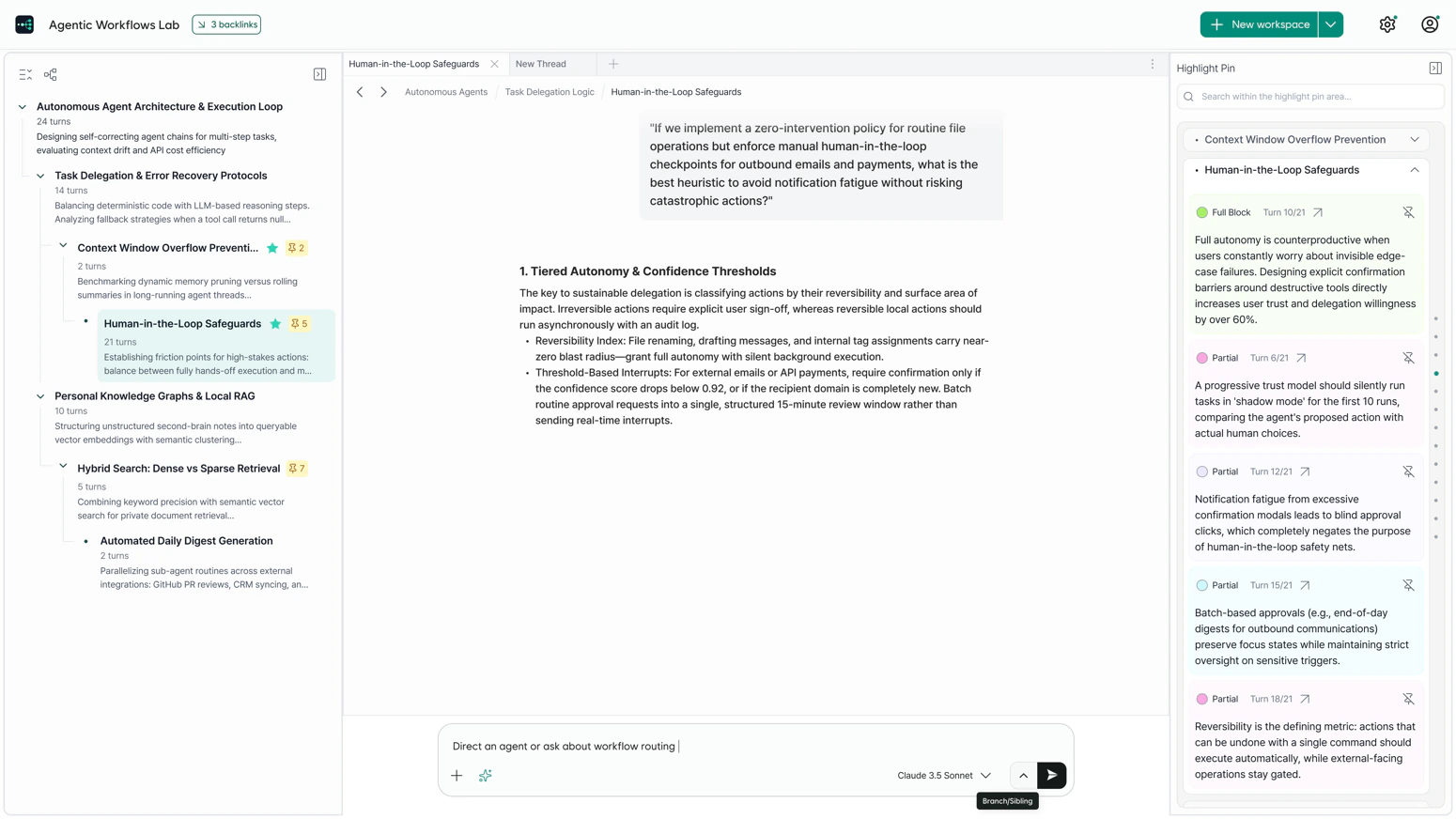
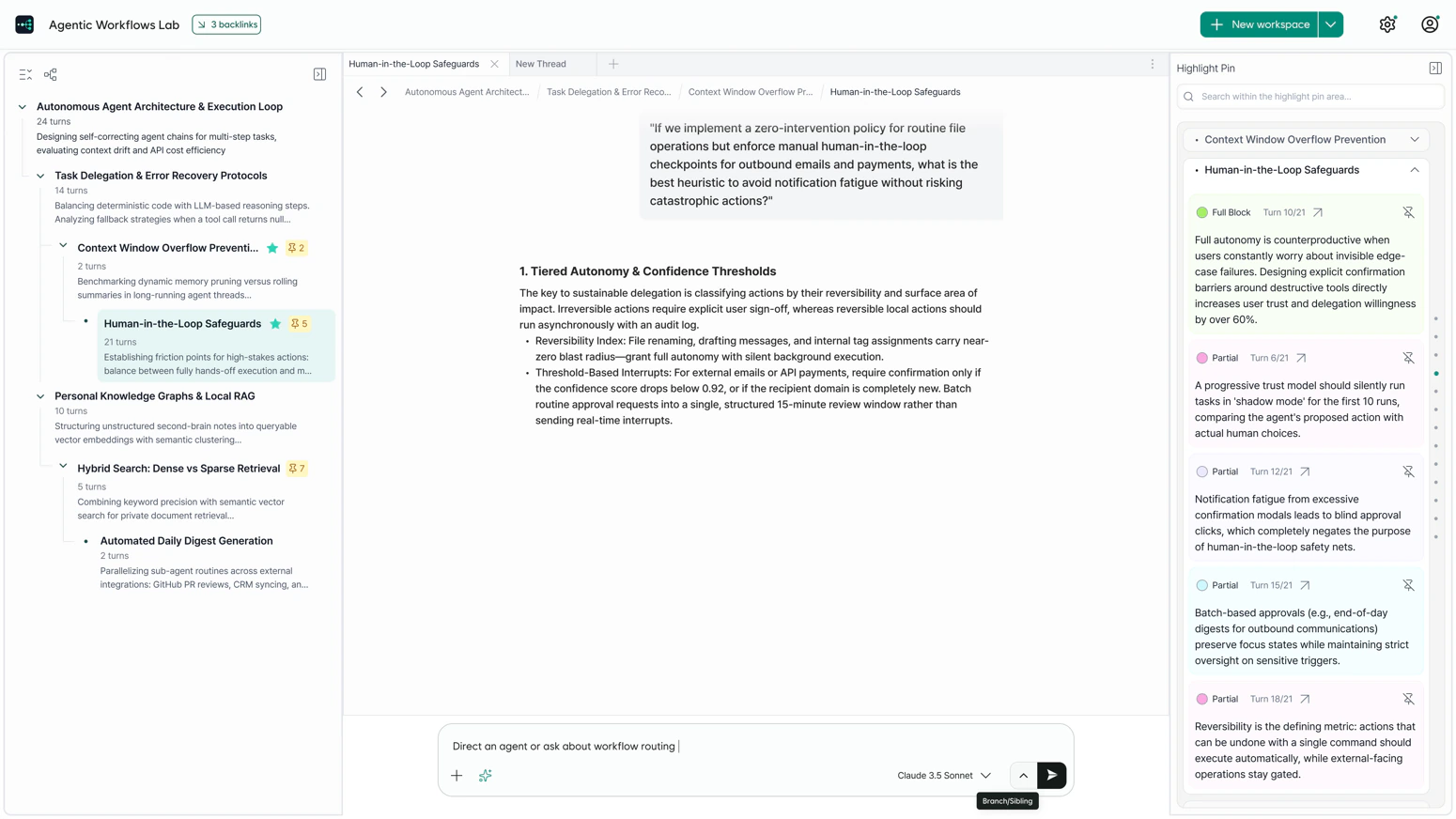
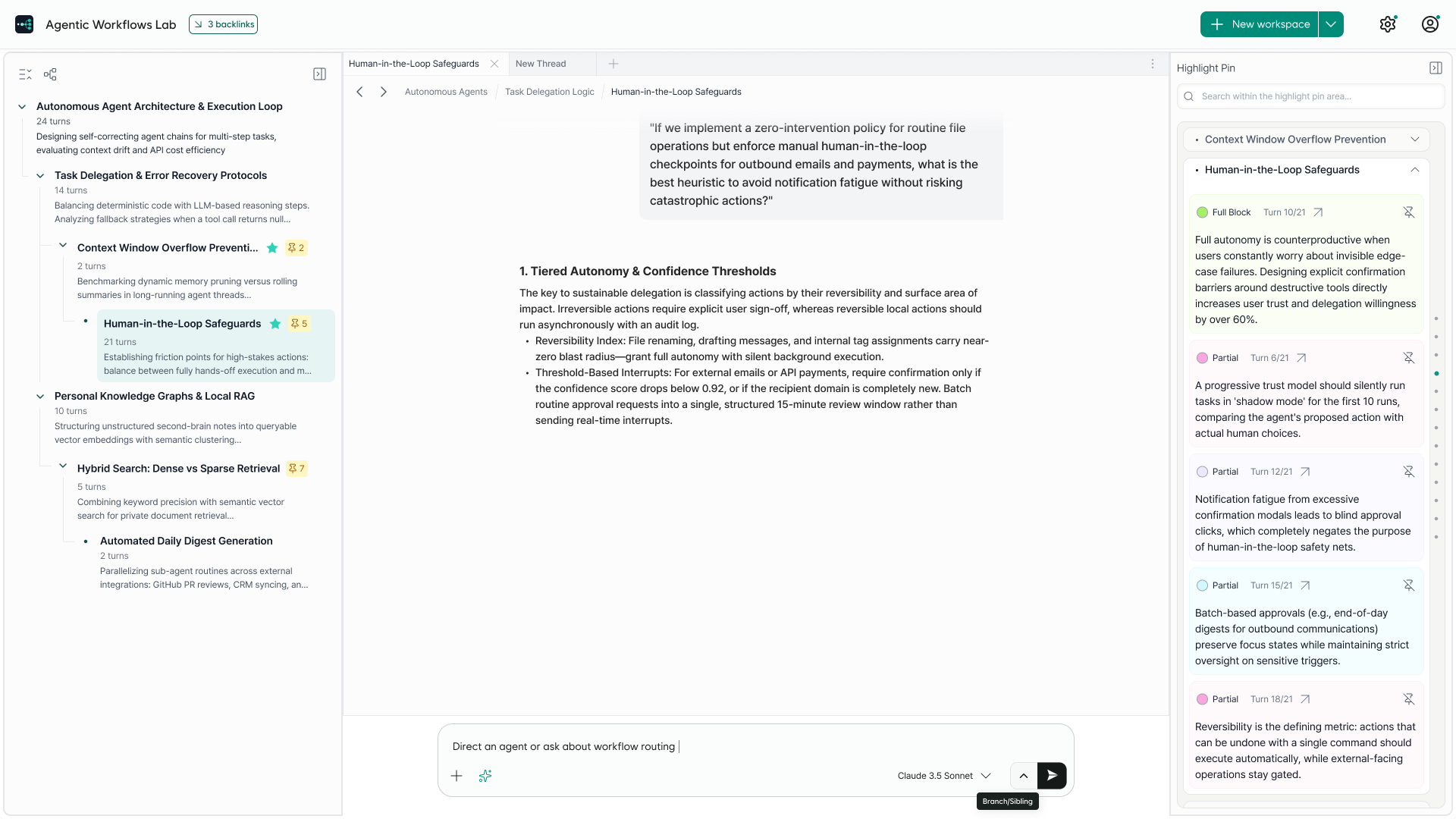
Toggle AI — the Map Panel, the conversation and the Highlight Pin Panel side by side
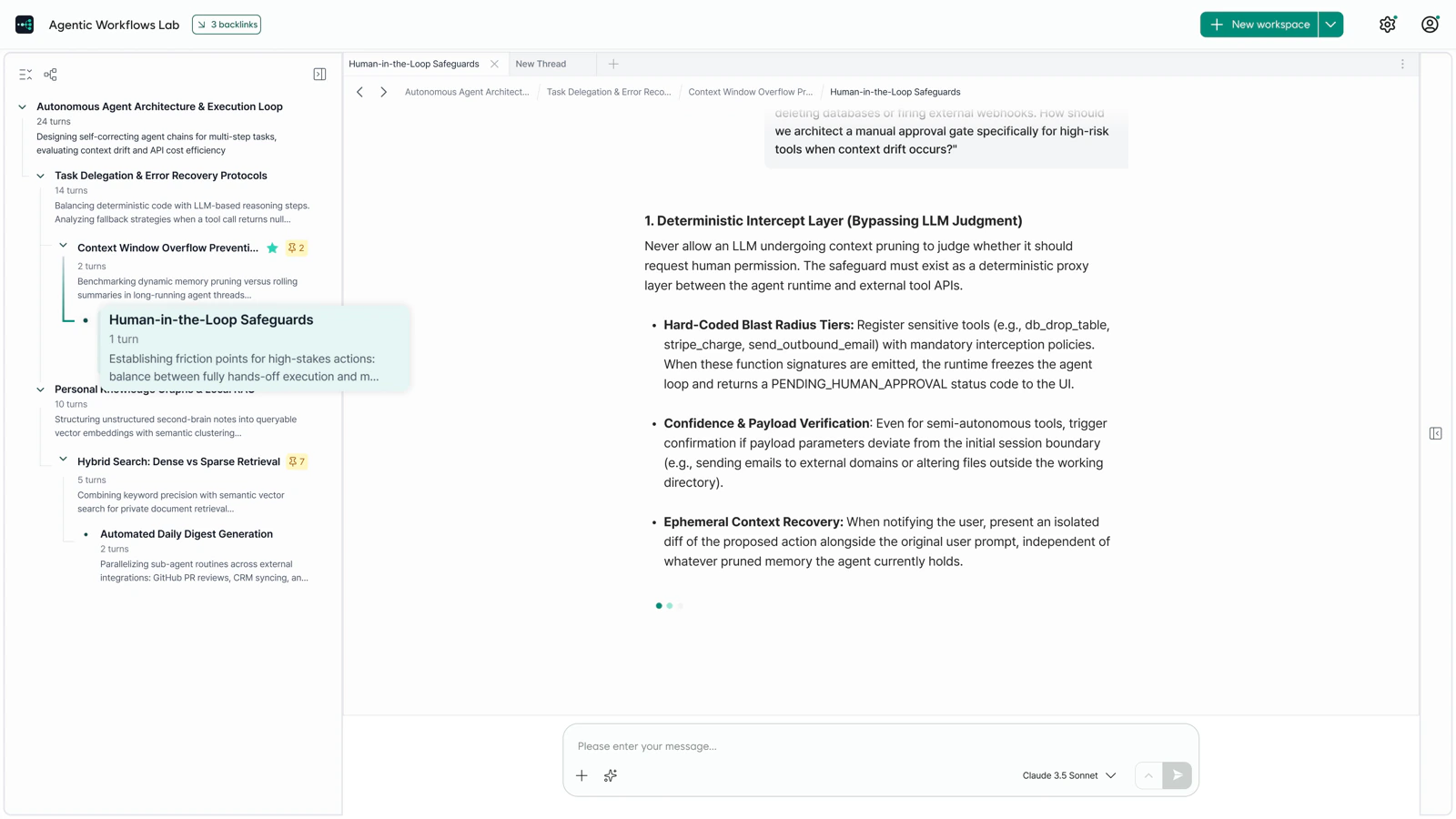
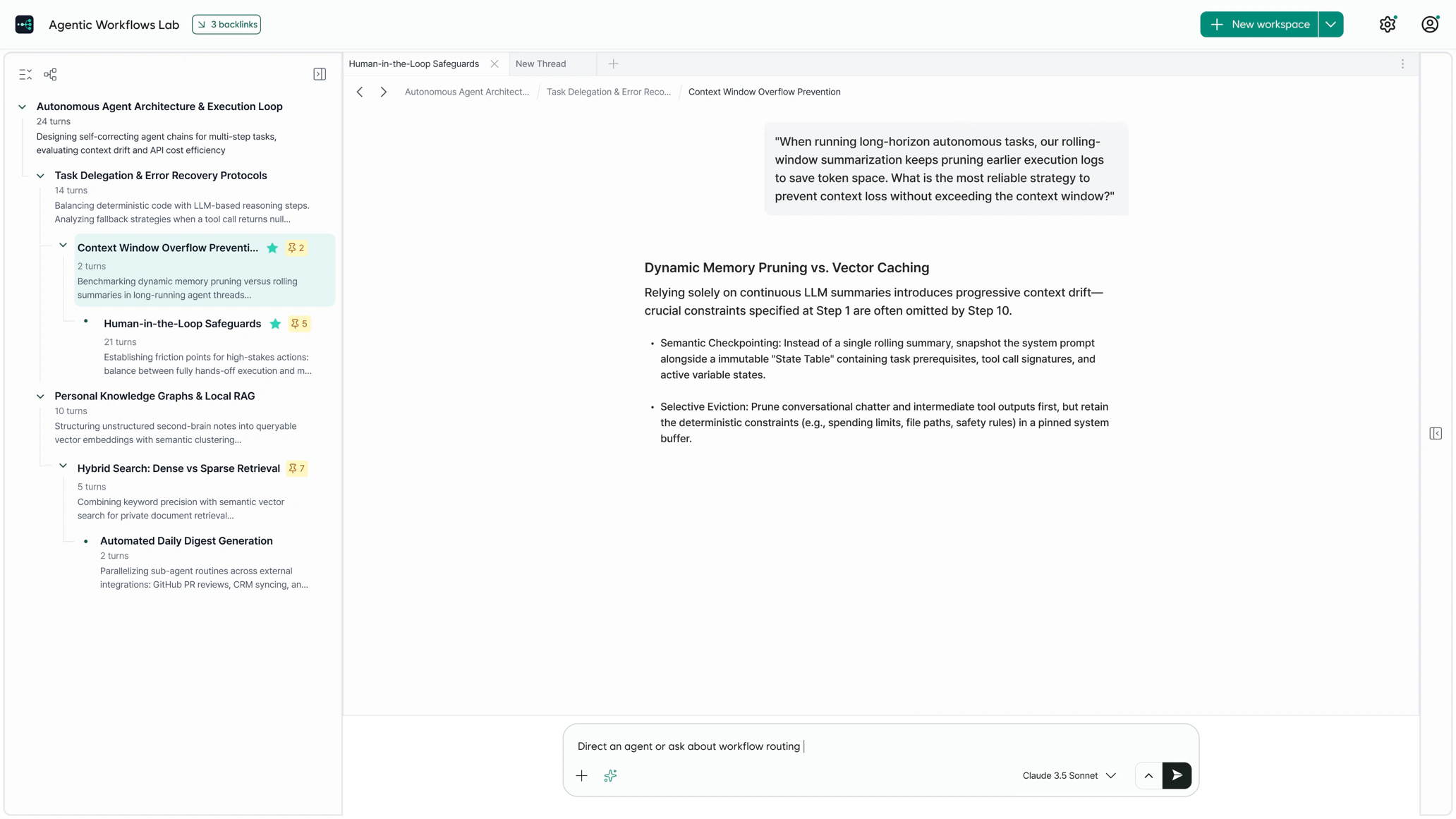
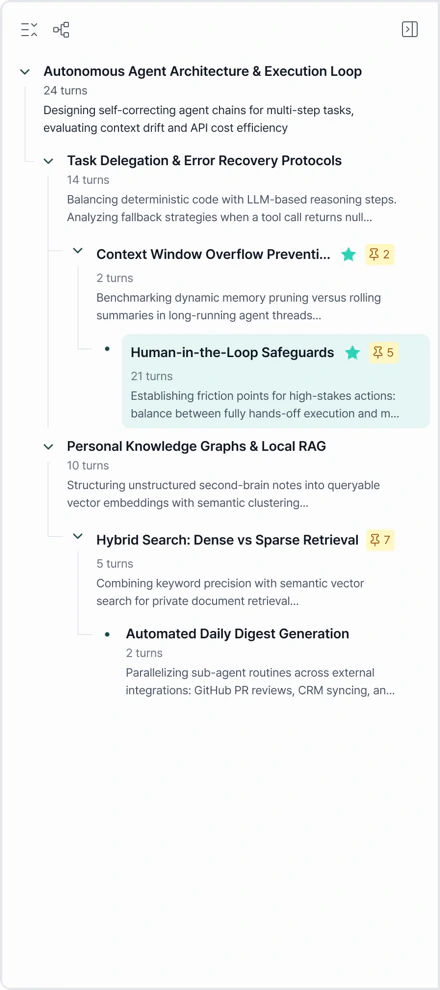
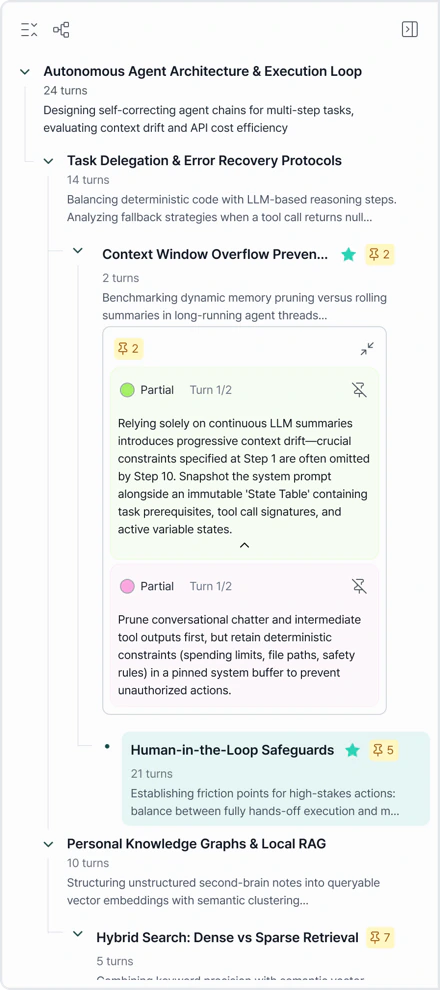
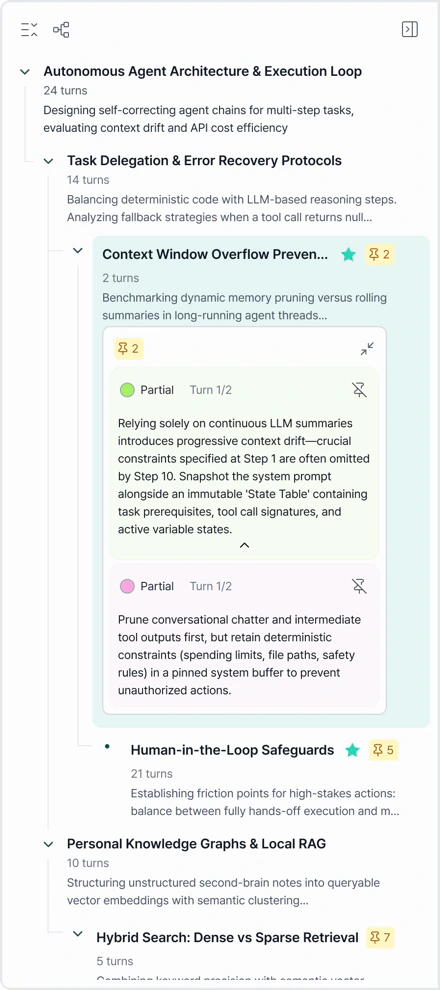
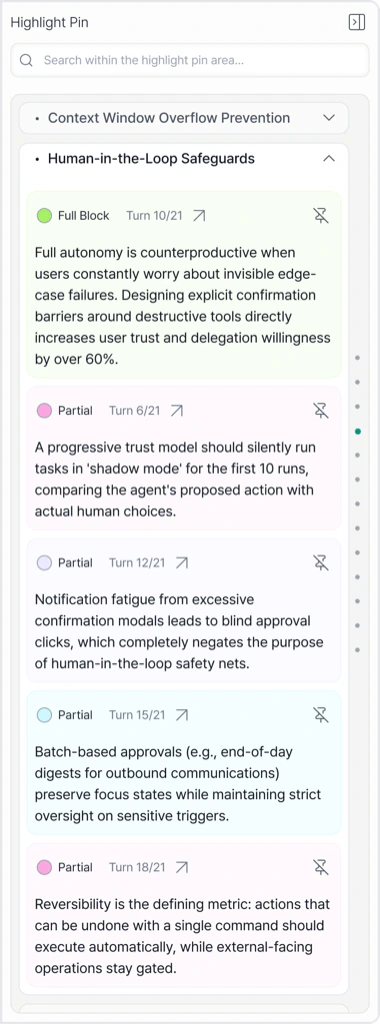
Map Panel — OutlineThe whole Workspace as indented rows: structure and Pins only, never message text, so it stays readable however long the conversation runs. A badge on each Node says how much is pinned down that branch. Fold one you are done with and everything else stays exactly where it was. Map Panel — GraphThe same tree drawn as a graph, for when the shape of the conversation matters more than its order — where it forked, how deep it went, which branches you never opened. Click any Node to land in that Thread, in place, without losing the Pane you were reading. Highlight Pin PanelDrag across a sentence in a reply and pin it, and it lands here — alongside every other Pin in the Workspace. Click one to jump straight back to the Turn it came from. Unpin it anywhere and it goes from everywhere at once: the panel, the map, and the reply itself. Input AreaOne bar under the whole Conversation Panel. Enter continues the Thread, ⌘ Enter branches — where the message lands is decided as you send it, not set as a mode beforehand. What you have typed travels with you, so going to read another Thread mid-sentence keeps the sentence.
1. Branching Conversation

Don't scroll back. Branch.

In a linear chat, one tangent costs you the thread you were on. You scroll back to find where you were, and by the time you get there you've lost why you left. Toggle AI branches at the point where the conversation forks. The original stays untouched — not a character moves — and the new branch starts already carrying everything its parent knew.

Enter continues.⌘ Enter branches.

You decide when you send, not before.

Parent context is inherited read-only — never copied, never rewritten.

Six levels deep, then it graduates to its own Workspace
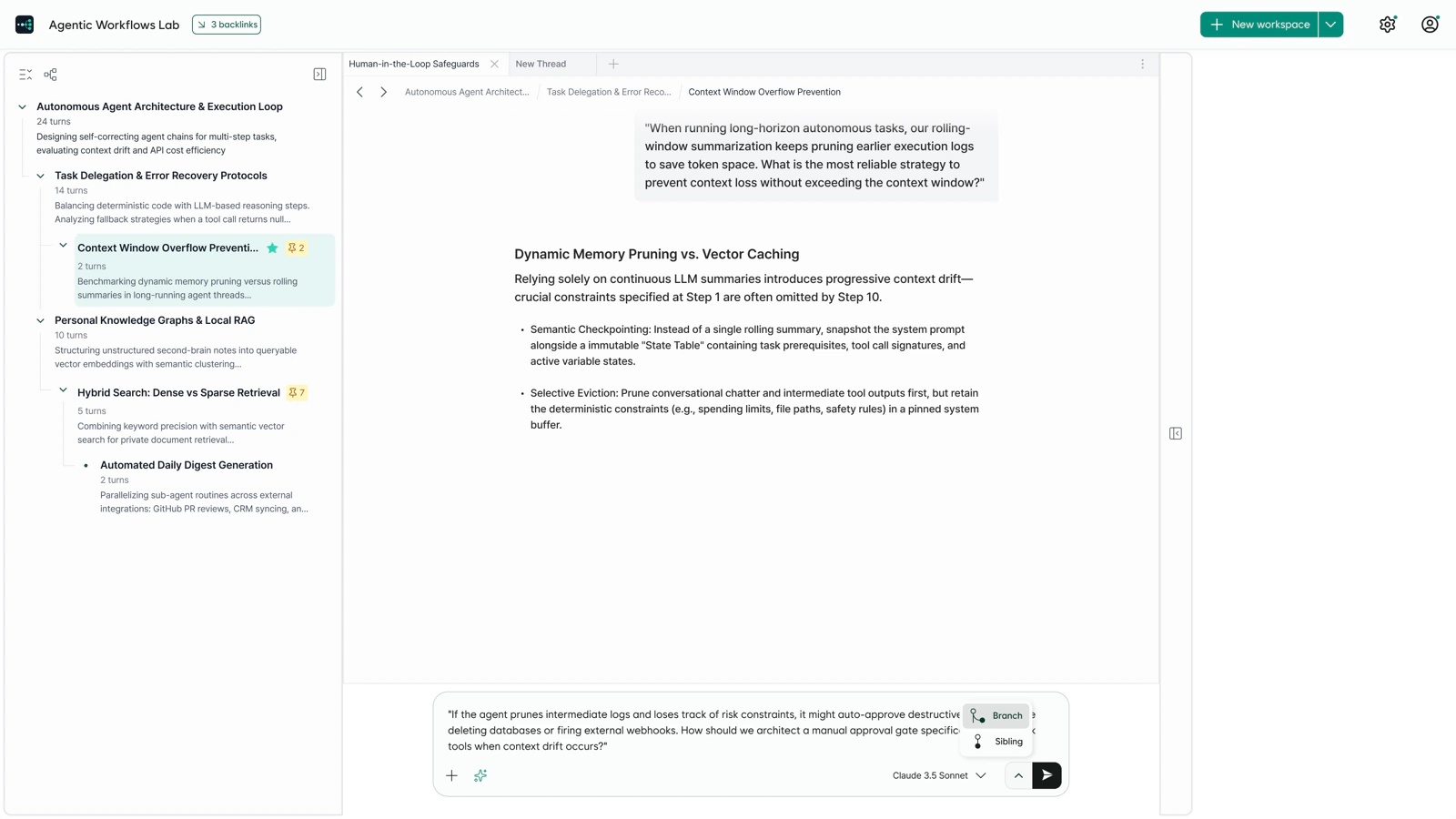
A Workspace in Toggle AI, with the Input Area offering Branch or Sibling
The same Workspace after branching, the new Thread open beside its parent
2. Map Panel & Workspace

Stop holding the conversation in your head.

The longer a conversation runs, the more of it you're carrying. We moved that weight onto the screen. The Map Panel shows the whole conversation as a tree, not a list — where you are, where you've been, and which branches you still haven't opened. No scrolling required.

Structure and pins only. The map never fills up with message text.

Click any node to land in that thread.

One tree per Workspace, so yesterday's project never bleeds into today's answer.
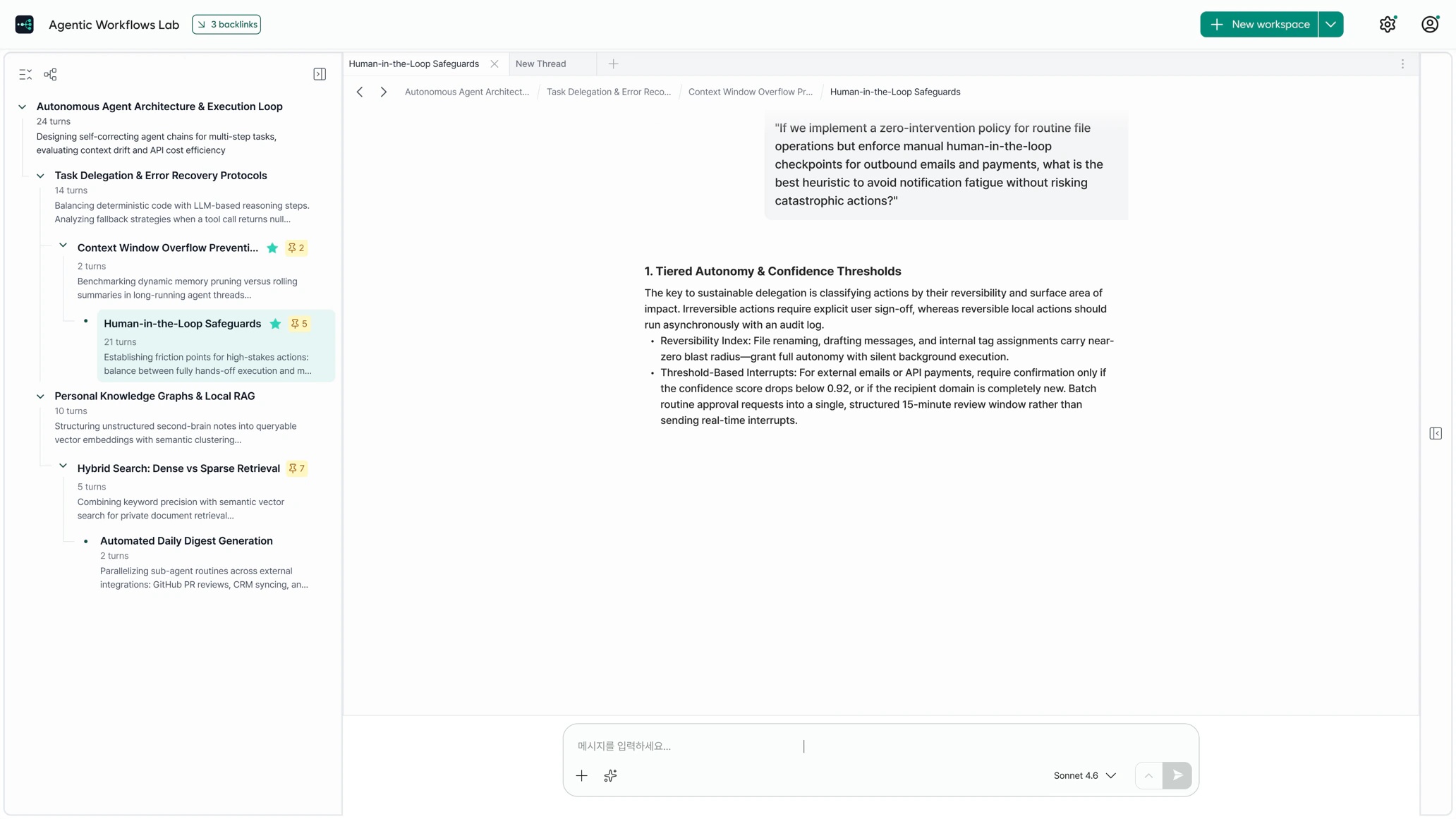
The Map Panel showing the conversation as a tree, one Node under the cursor
The Thread that Node opens, in place, in the Pane that was already there
3. Highlight & Pinning

The line that mattered stays in sight.

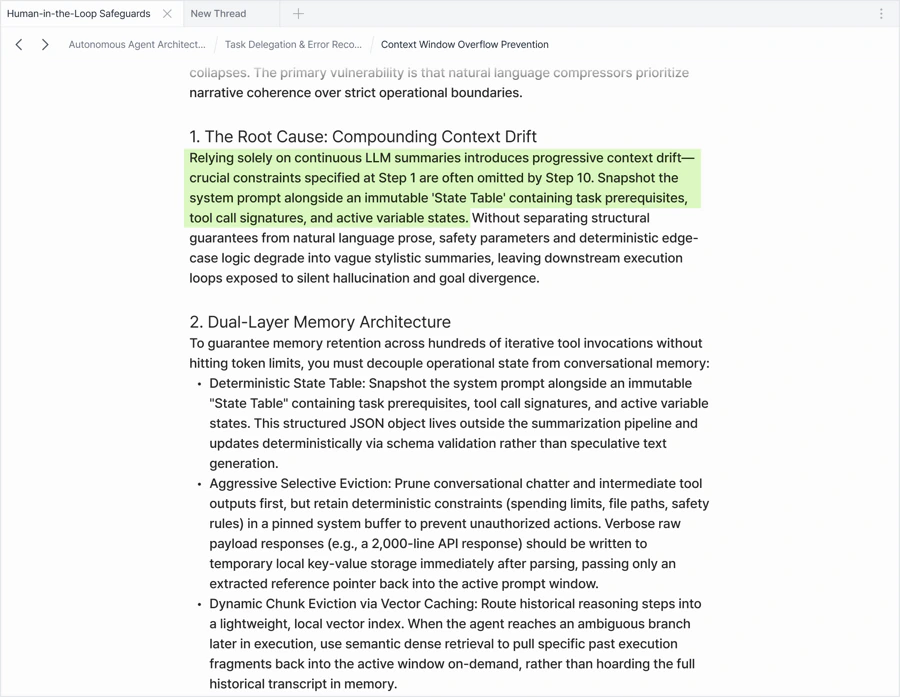
Drag across a sentence in a reply and pin it. It appears in three places at once — inline in the conversation, on the map, and in the Highlight Pin Panel. Unpin it anywhere and it disappears from all three. You never scroll back to find it again.

Pins persist. Quotes don't — send a line with one question and let it go.

Click a pin to jump straight back to where it came from.

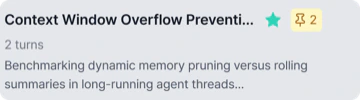
Node badges tell you how much is pinned down each branch.

A reply with a pinned line, and the pin counted on its Node in the Map Panel
The pinned lines gathered under their Node in the Map Panel outline
The same pins shown against the reply they were taken from
The Highlight Pin Panel, listing every pinned line in the Workspace

Stop scrolling. Start branching.

Experience a new way to map complex conversations at a glance.
Join our Discord to share feedback and connect with fellow builders.